Retroworks

Retroworks / Agents / QuickBooks agents

Your books, kept up by agents. Every entry waits for your OK.

A set of agents for QuickBooks Online, with Microsoft 365 for mail. They read your bills, match your bank lines, keep your aging current and send you reports. A person approves every change before it posts.
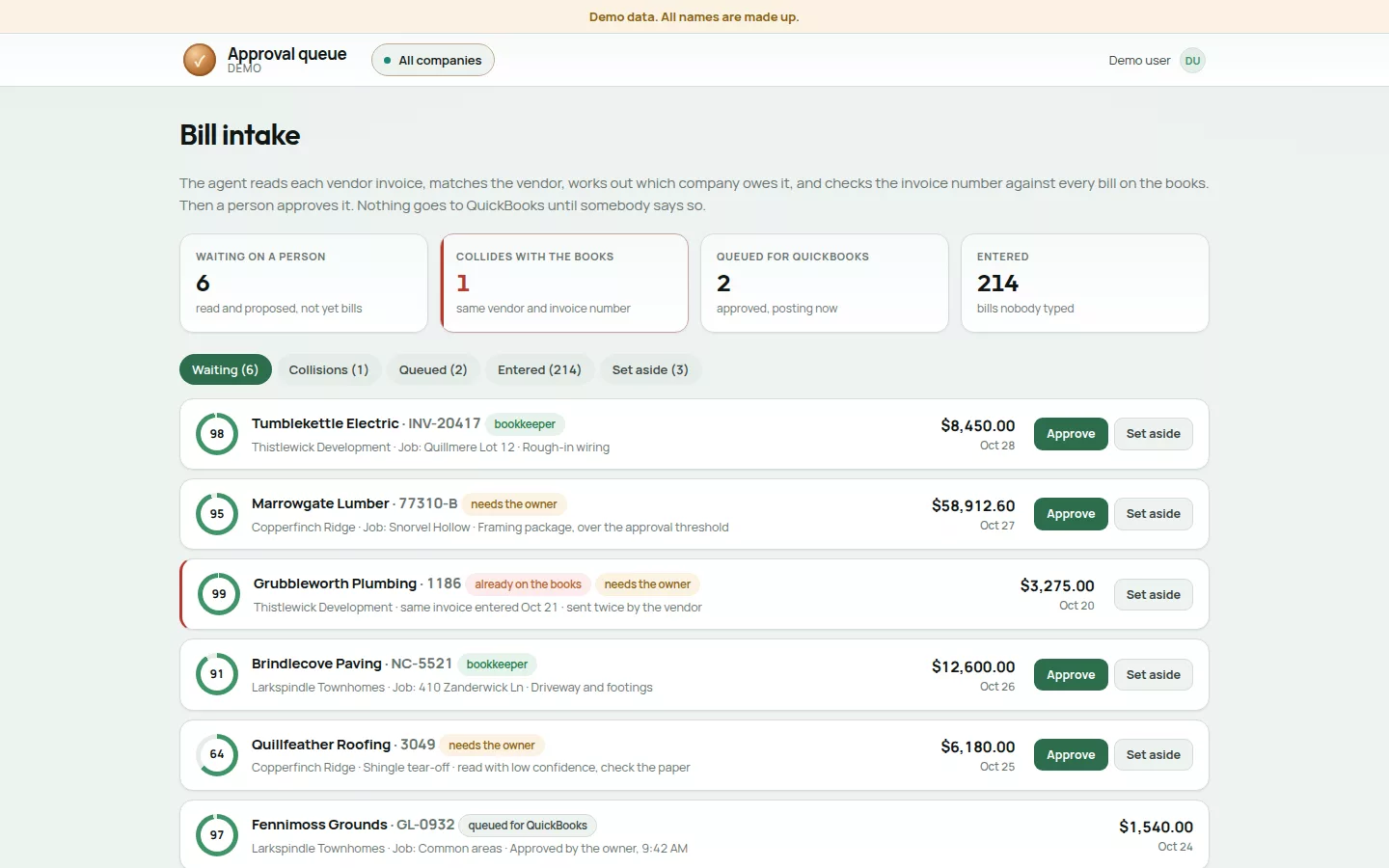
The approval queue: bills read from email, each with the vendor, job, amount and a confidence score, waiting for a person to approve or set aside. One is flagged as already on the books.
The approval queue. Every bill waits for a person. Duplicates and big bills go to the owner. Demo data. All names are made up.

What's in the suite

Nine jobs. One rule: you approve.

Each agent does one job in your books. We set up the ones your business needs.

01

Bill intake

Reads vendor bills from your billing inbox and drafts the QuickBooks bill. A person approves each one before it posts.

02

Mailbox router

Finds vendor invoices that landed in your other company mailboxes and sends a copy to the billing inbox. It doesn't move, delete or mark anything as read.

03

Photo receipts

Reads photos of receipts and paper invoices and feeds them into bill intake.

04

Bank matching

Matches bank lines to QuickBooks transactions and lists what's missing. A person approves any booking.

05

Bank clear

Books only the bank lines a person said yes to, like fees, transfers and splits.

06

Money guards

Stops a second payment request when QuickBooks shows the bill is already paid. Own more than one company? It flags money booked to the wrong one.

07

Paid and aging refresh

Keeps your A/P aging and paid status current from QuickBooks, every hour. Read-only.

08

Reports to you

A receipts report, a month-end budget report and a weekly cash outlook email.

09

Books-changed notices

Every QuickBooks change is logged, and you get told about it.

Inside the suite

The billing agent.

Most owners start here. Bills in your inbox become QuickBooks entries you approve from your phone. If QuickBooks already shows a bill as paid, it stops a second payment request.
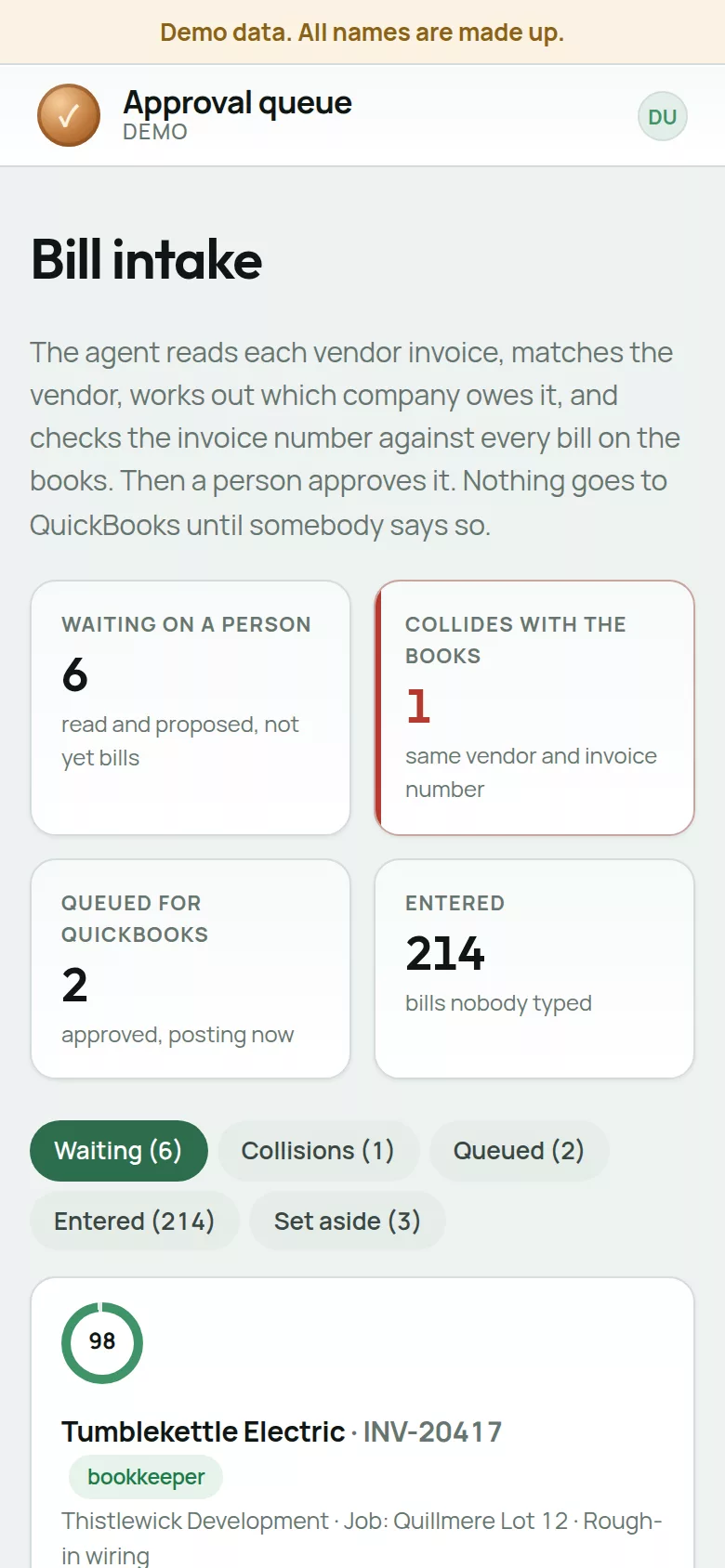
The approval queue on a phone.
The approval queue on your phone. Demo data. All names are made up.

Inside QuickBooks

Approved bills land as normal QuickBooks bills.

Nothing new to learn. Each approved bill shows up in QuickBooks Online with its lines, terms and due date, and a memo that says where it came from. Shown on an Intuit sandbox company, with bills entered by hand.
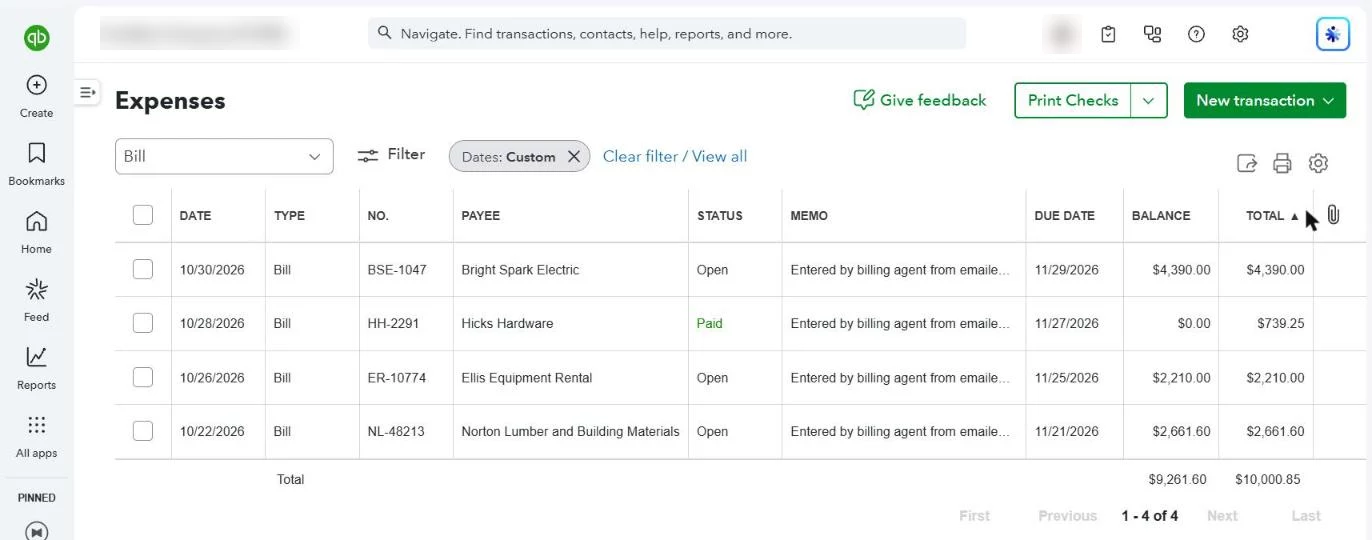
QuickBooks Online Expenses list with four bills from made-up suppliers, each with a memo saying it came from an emailed invoice and was approved by the owner.
The bills in QuickBooks Online. Example bills in a QuickBooks test company, entered by hand to show how an approved bill looks. Demo data. All names are made up.
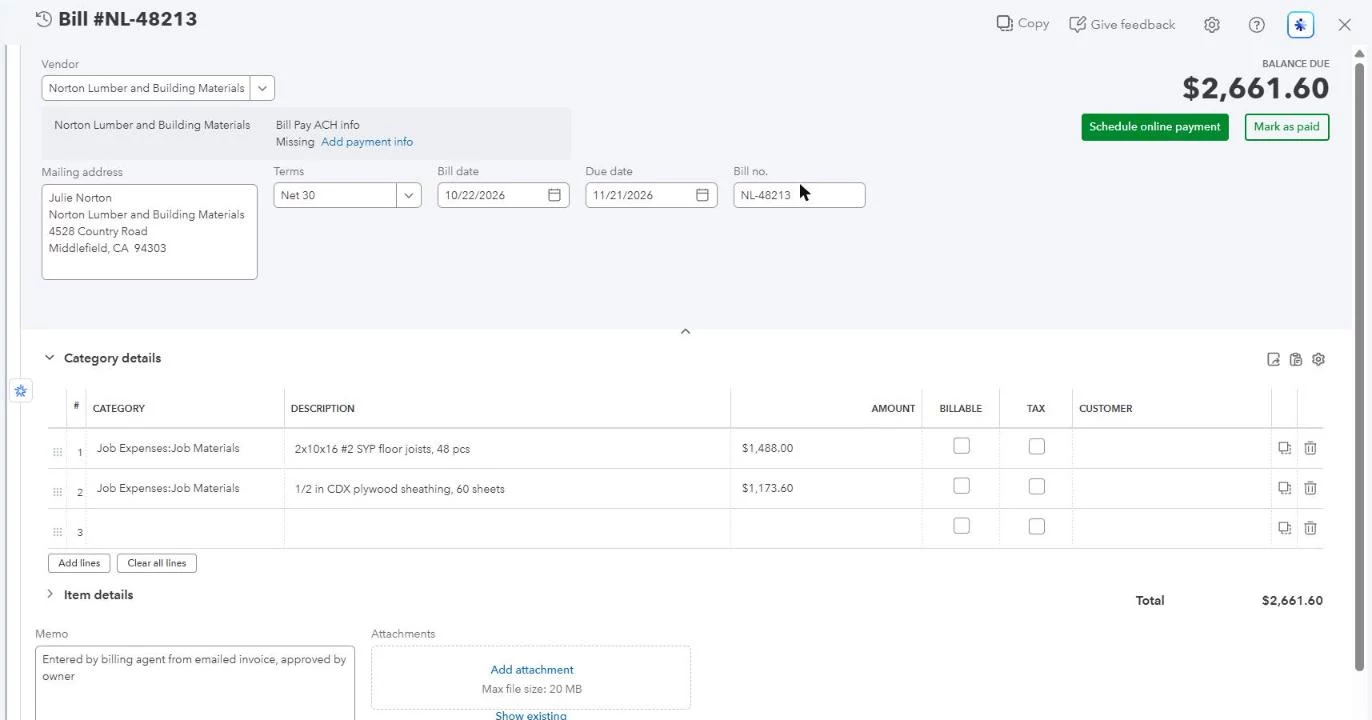
One bill in QuickBooks Online: supplier, Net 30 terms, two job material lines and the memo.
One bill, line by line. Example bill in a QuickBooks test company, entered by hand to show how an approved bill looks. Demo data. All names are made up.

After your OK

It does the entry. You make the call.

Once you say yes, it can

  • Create the bill.
  • Create the payment record or expense from a bank line you approved.
  • Attach the source document.
  • Reclass or void an entry, on your say-so.

It never

  • Pays vendors or moves money.
  • Prints or signs checks.
  • Emails your vendors or customers.
  • Creates vendors, customers or accounts.
  • Posts anything without approval.

Examples

What you see, on a made-up company.

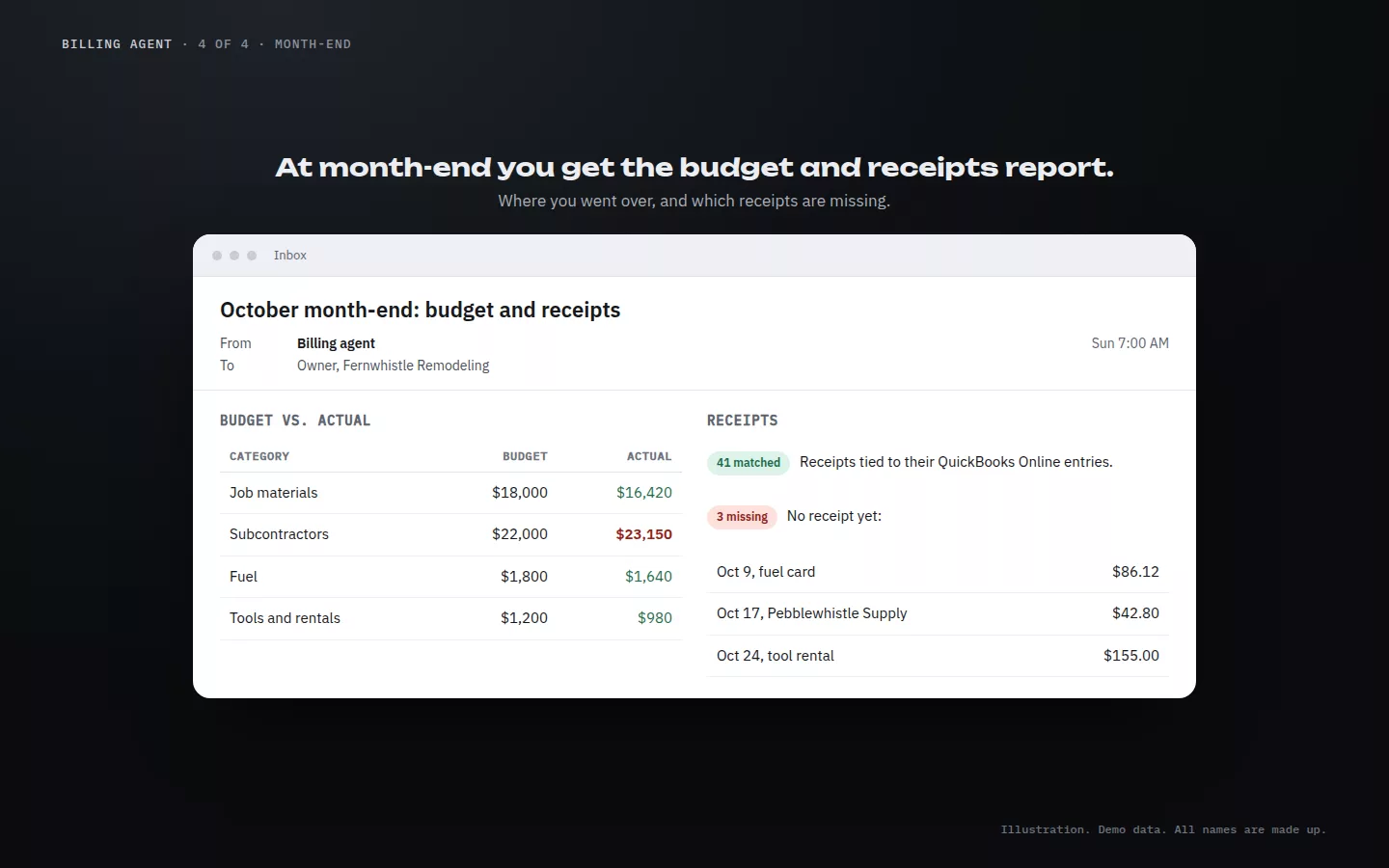
The agents work through email and approvals. These illustrations show bank matching and the month-end email, on a made-up remodeling company.
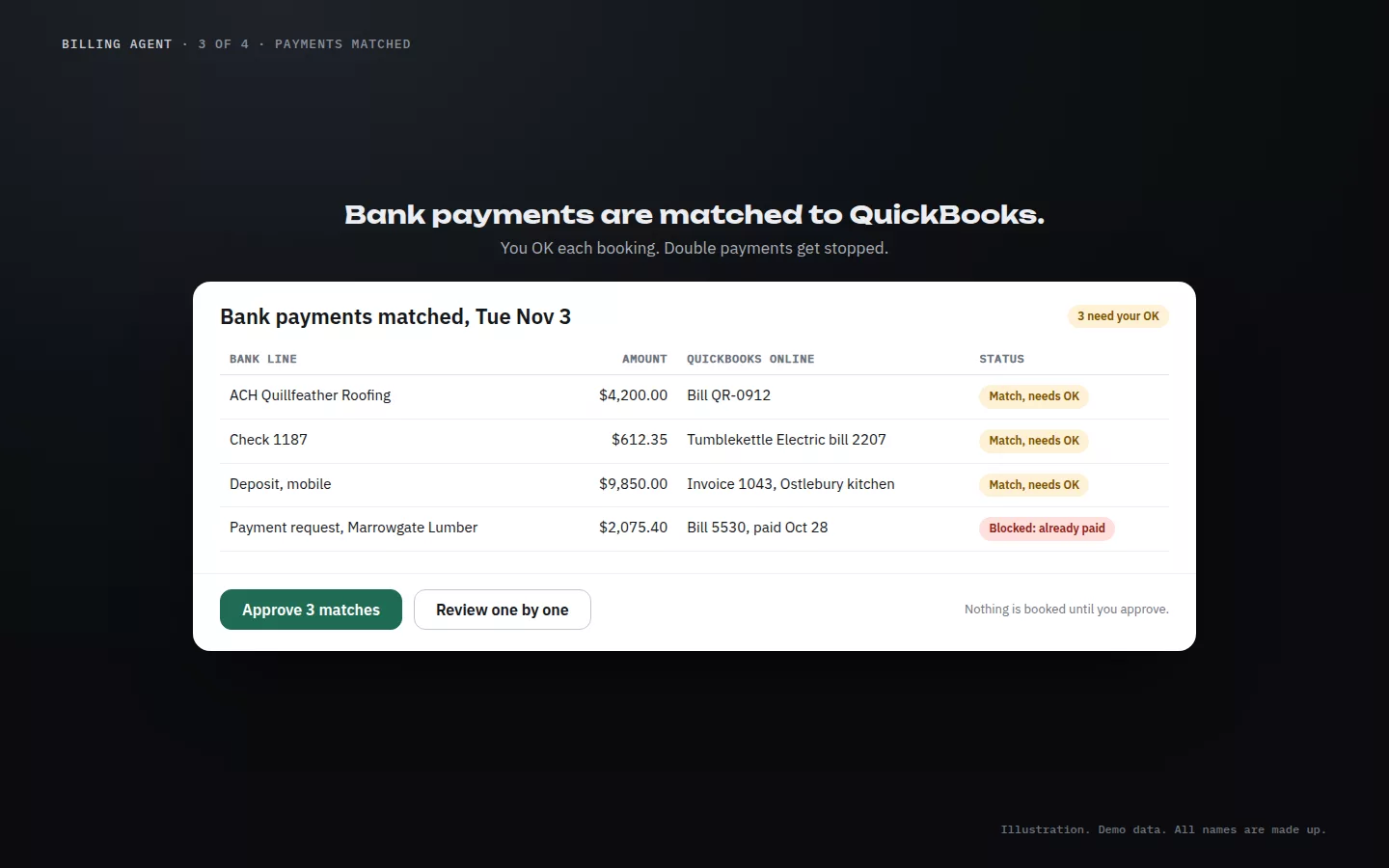
Bank payments matched to QuickBooks Online: three matches waiting for approval and one payment request blocked because the bill is already paid.
Payments matched. A second payment request gets blocked. Illustration. Demo data. All names are made up.
A month-end email: budget against actual by category, 41 receipts matched and 3 missing.
Month-end. Budget and receipts in one email. Illustration. Demo data. All names are made up.

Setup

Set up for you, around your books.

This is a custom setup for your business, not an app you install yourself.

  1. Connect QuickBooks Online. An admin on your QuickBooks Online company signs in and gives consent.
  2. Connect your mail. You approve a Microsoft 365 app that can read and send mail, and we set up a billing inbox.
  3. Map your books. We map your accounts and vendor rules from your own books.
  4. Approve as you go. Drafts and bank matches wait for you on your phone or computer. Nothing posts until a person says yes.

The rules

You stay in charge.

Nothing posts until you approve

Every bill, booking and change waits for a person on your team to say yes. Until then, your books don't change.

Money stays with you

The agents don't pay bills, move money or talk to your vendors and customers. That stays with your team.

QuickBooks Online and Microsoft 365

Built for QuickBooks Online, with Microsoft 365 for mail. See the plug-ins.

Your move

Want your books kept up?

Thirty minutes. Show us how bills and bank lines reach you today and we'll walk you through the agents. The billing agent is $3,500 to set up, then $395 a month. See the service menu.