The front-desk computers
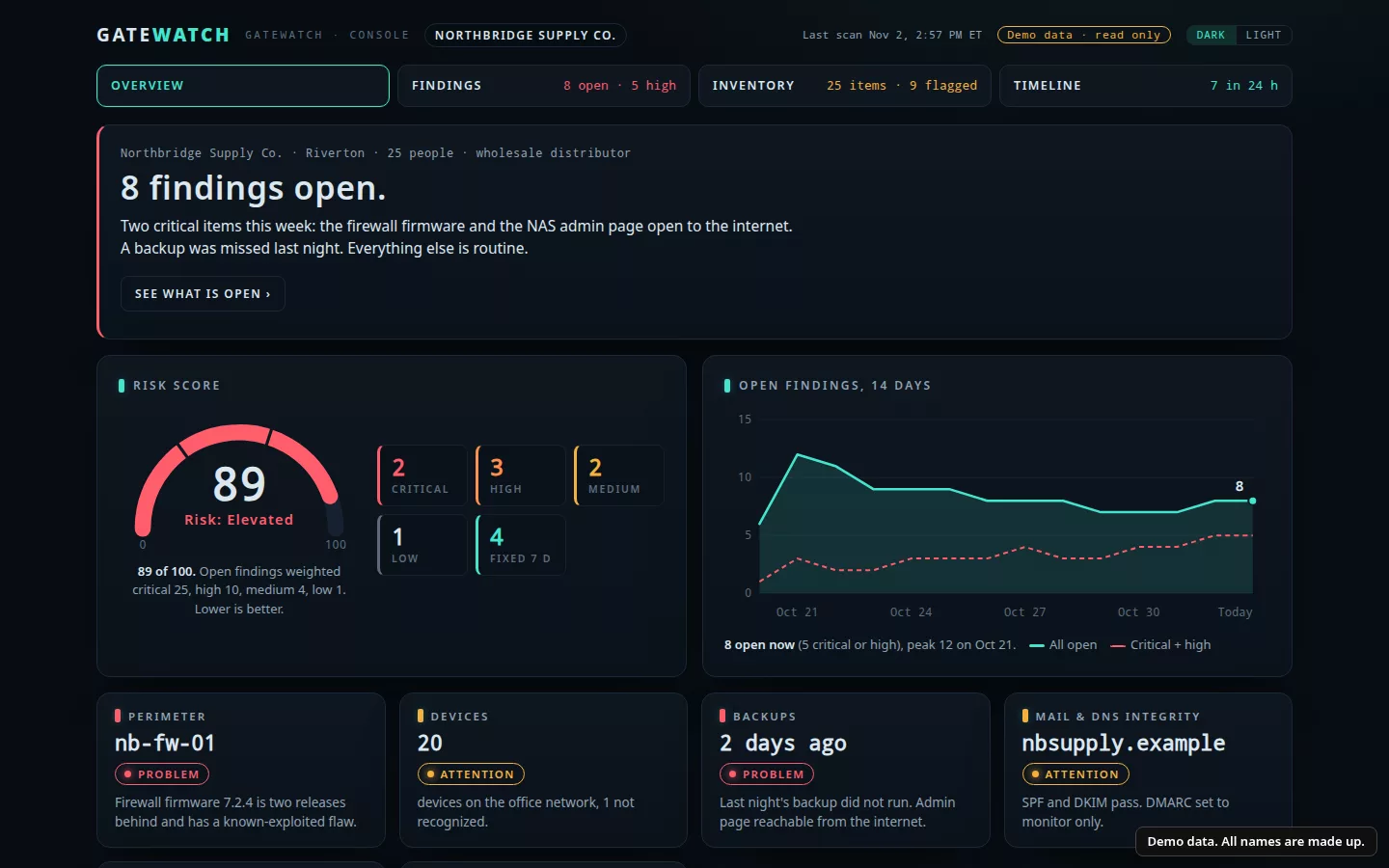
Every computer on the office network shows up in one list. When a new device joins, you get an alert so someone can check it.
Retroworks / GateWatch / Dental offices
For dental offices with 5 to 50 staff
GateWatch is in early access. We're setting it up with a small number of offices. Book a call to see if it fits yours.
Your office handles patient records, so knowing your weak spots matters. GateWatch looks at your office network, your email settings and how your staff sign in. Each morning it sends a short summary of what it found, with the proof and a suggested fix. Your team or your IT provider makes the change.
It does not make an office HIPAA compliant; your IT provider and advisers decide what to fix.
In a dental office
Most dental offices have no IT department, just a few busy computers and an IT provider they call. GateWatch helps you and your IT provider see problems like these, in words everyone in the office can read.
Every computer on the office network shows up in one list. When a new device joins, you get an alert so someone can check it.
The computers behind your X-ray sensors and imaging software show up on the same list, so you can see what else shares their network. GateWatch never opens the images.
With a small agent on the server, GateWatch checks its software against published security advisories and flags break-in signs, like repeated failed logins.
Patients use the guest Wi-Fi in the waiting room. If a phone nobody recognizes shows up on the office network, GateWatch flags it. That can be a sign the two networks aren't kept apart.
Patients get reminders and bills from your address. GateWatch checks the email settings that decide how easy it is for someone else to send mail pretending to be your office.
Shared front-desk mailboxes and staff accounts without two-step sign-in, named one by one.
What it checks
You choose how far to go. The day-one checks don't need anything installed in your office.
Nothing installed.
A check from outside your office for open ports on your office's internet address. Only addresses you've shown are yours and signed for.
Your SPF, DKIM and DMARC settings, which make your address harder or easier to fake. Plus any change to your DNS records.
Your website certificate and your domain name, flagged before they lapse.
One short email each morning, plus a sign-in page with every finding, the proof and a suggested fix.
Each one is optional.
A list of every device on the office network, with an alert when a new one joins. Needs a small sensor box at the office.
Who signs in, and which accounts don't use two-step sign-in. Needs a read-only grant in your Microsoft 365 or Google admin.
Software updates that are missing and break-in signs. Needs a small agent on each server. Servers only, not staff PCs.
How it works
Screens
These come from a demo company with invented devices, addresses and domains. Yours shows your own office.
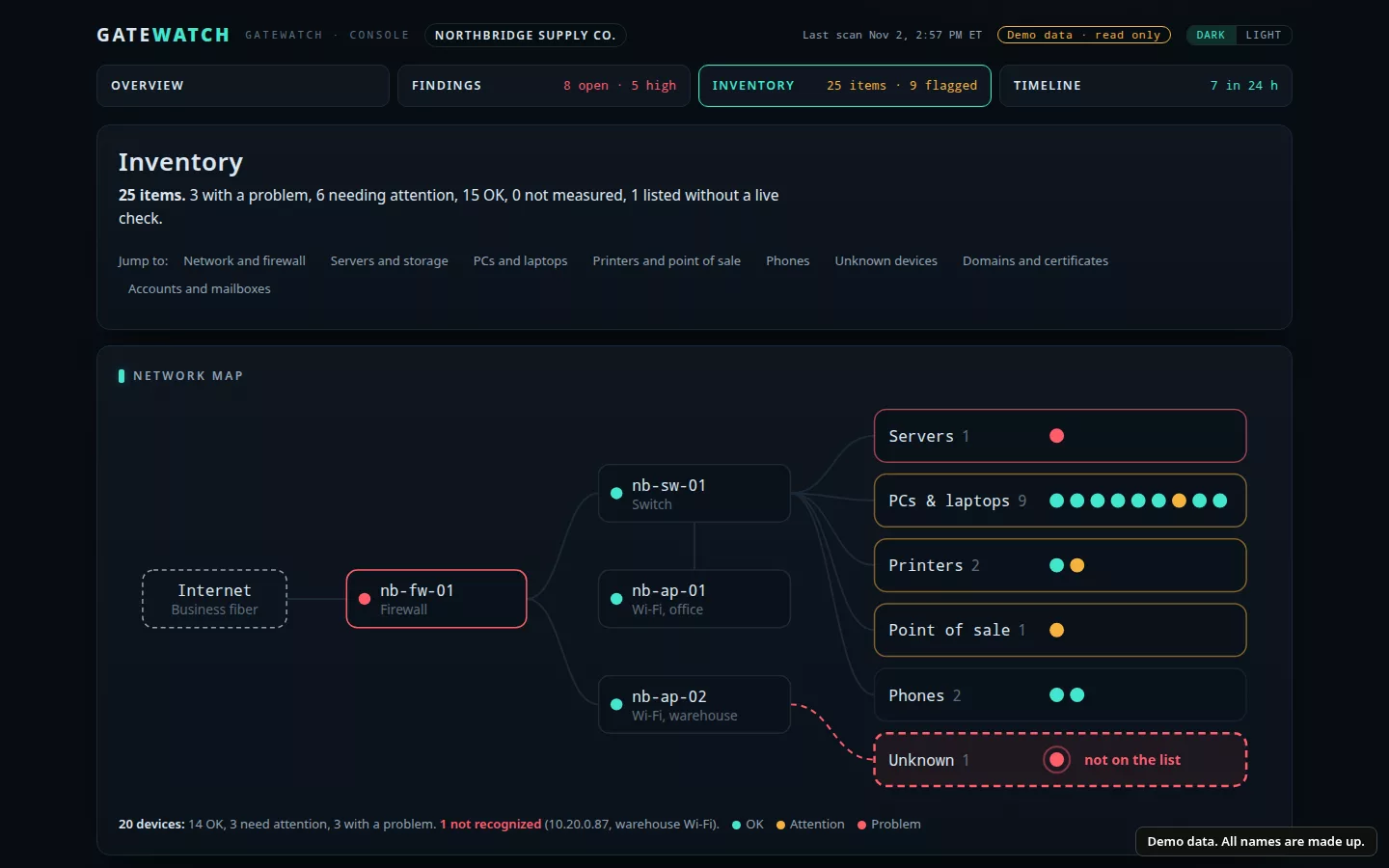
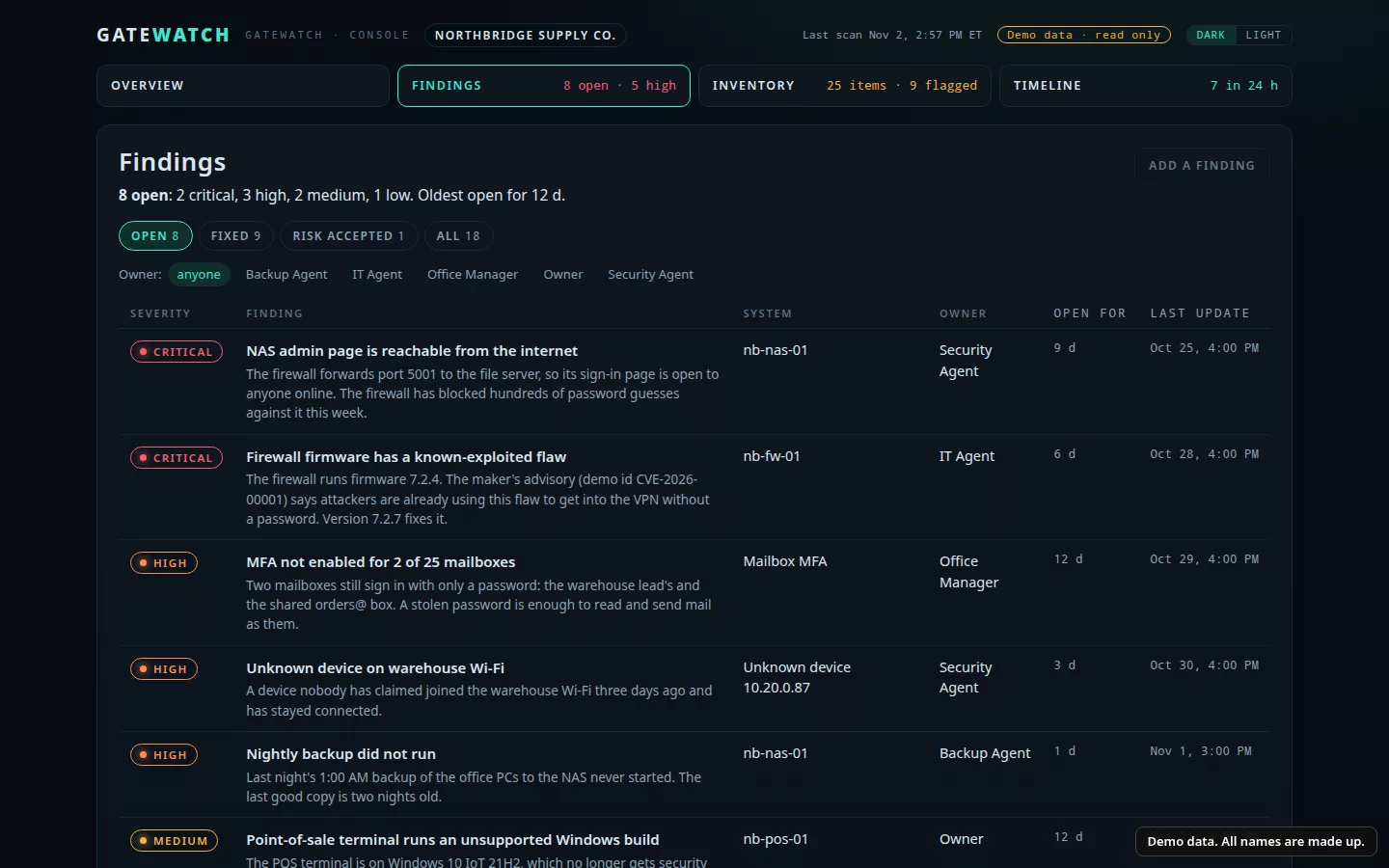
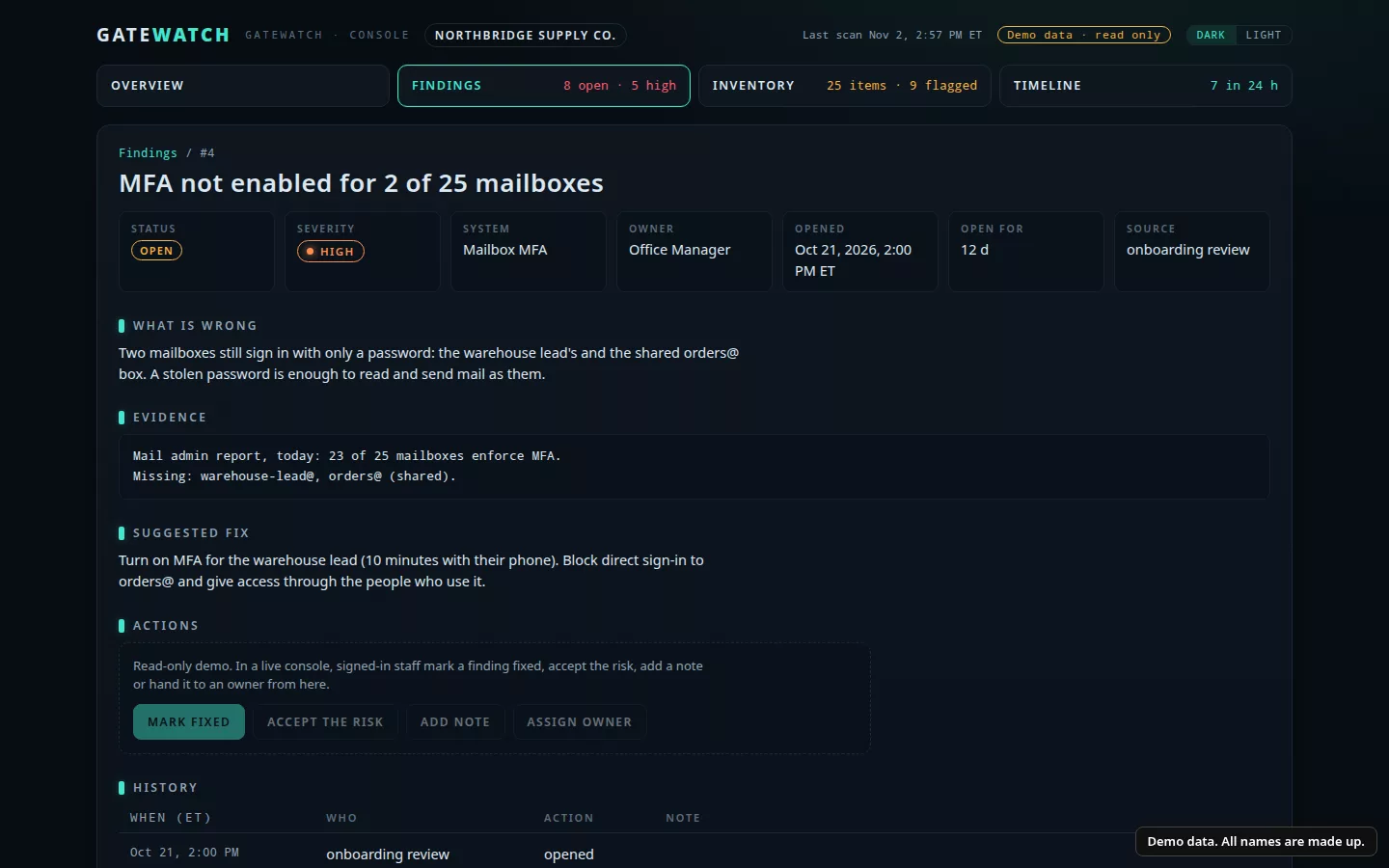
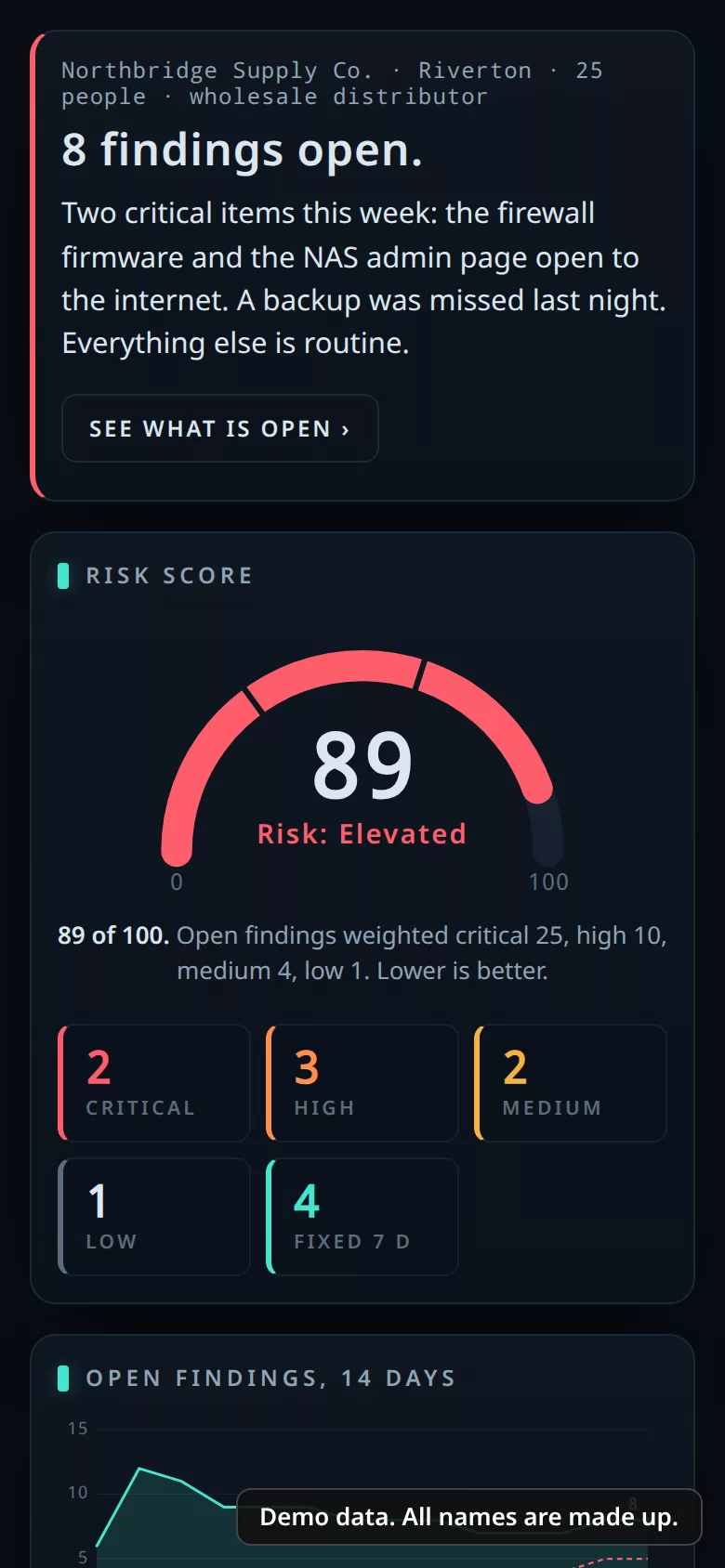
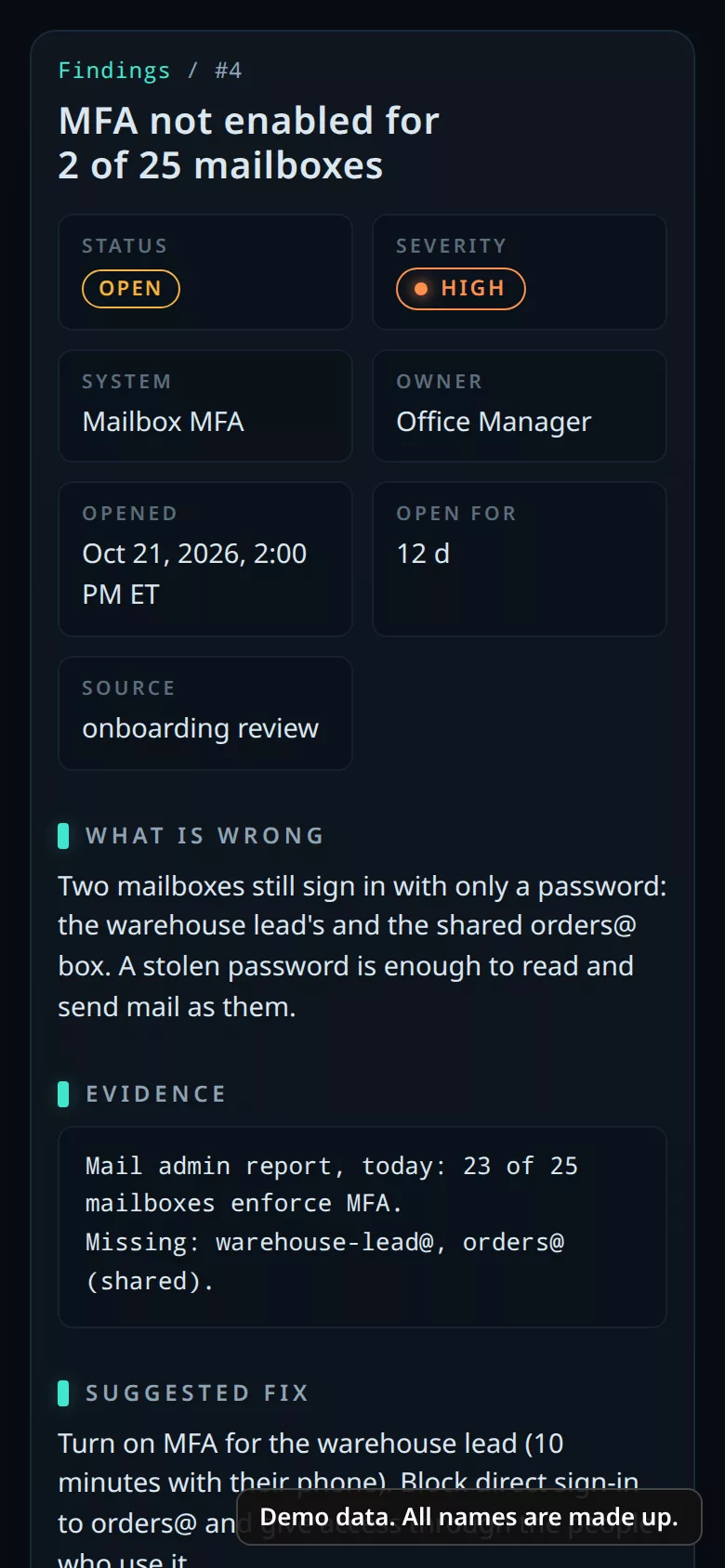
Every finding reads like a note from a careful IT person: what's wrong, why it matters and what to do next. The office manager can read it, and your IT provider can act on it.
The rules
GateWatch looks and reports. Your team or your IT provider makes every change.
Nothing is checked until you show it's yours and sign a written authorization that names it.
Sign-in checks use a read-only grant in your Microsoft 365 or Google admin.
It doesn't open patient records, X-rays or the data in your practice software.
No tool catches every problem. GateWatch helps you and your IT provider see common weak spots early and know what to do next.
Every office is different, so pricing follows a short call about yours.
Your move
Thirty minutes. Tell us about your office and who handles your IT, and we'll walk you through the demo console.